
Projects
Organize your chats, workflows, and team collaboration in one place
Projects allow you to group your chats and workflows by specific topics or initiatives. You can keep projects private for personal organization or share them with your team to standardize processes.
Create a Project
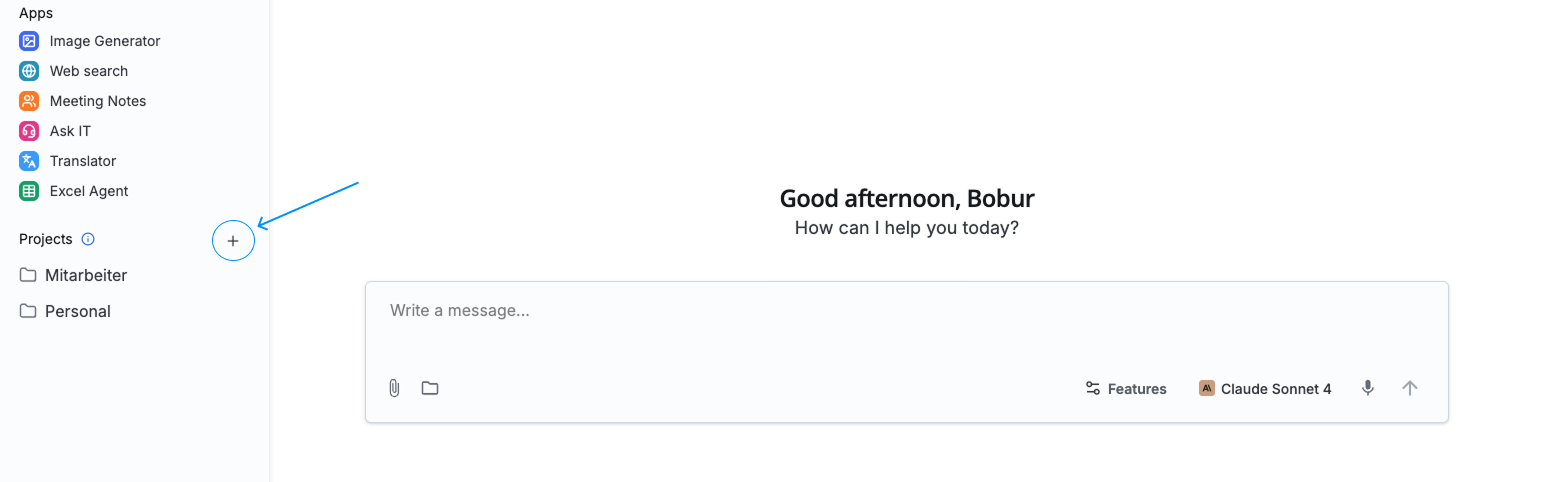
Click the Plus (+) icon in the sidebar. Give your project a clear name and select a recognizable icon to make it easy to find.
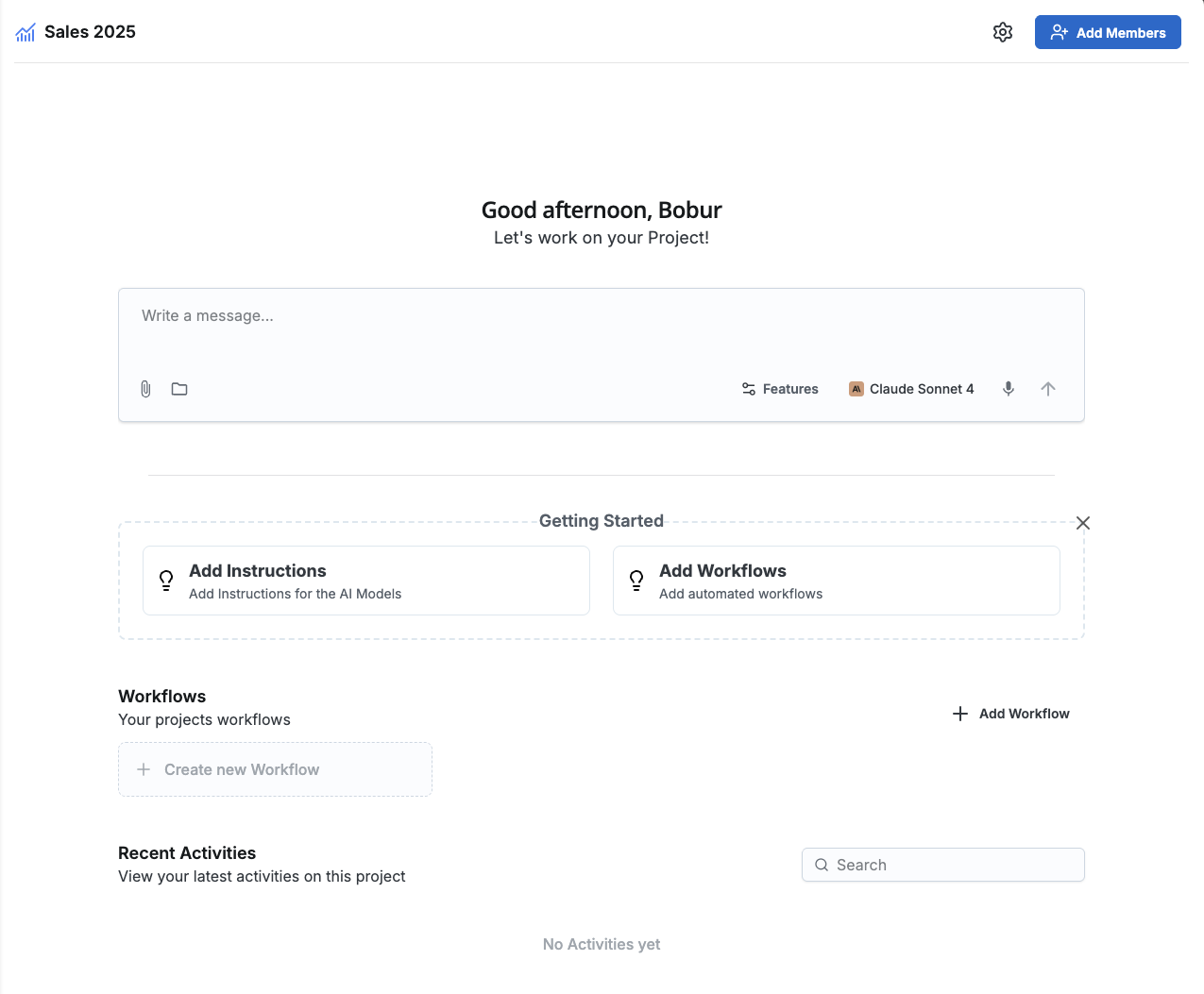
Project Overview
Once created, you will land on the project home screen. This serves as the central hub for all configurations and activities within this project.
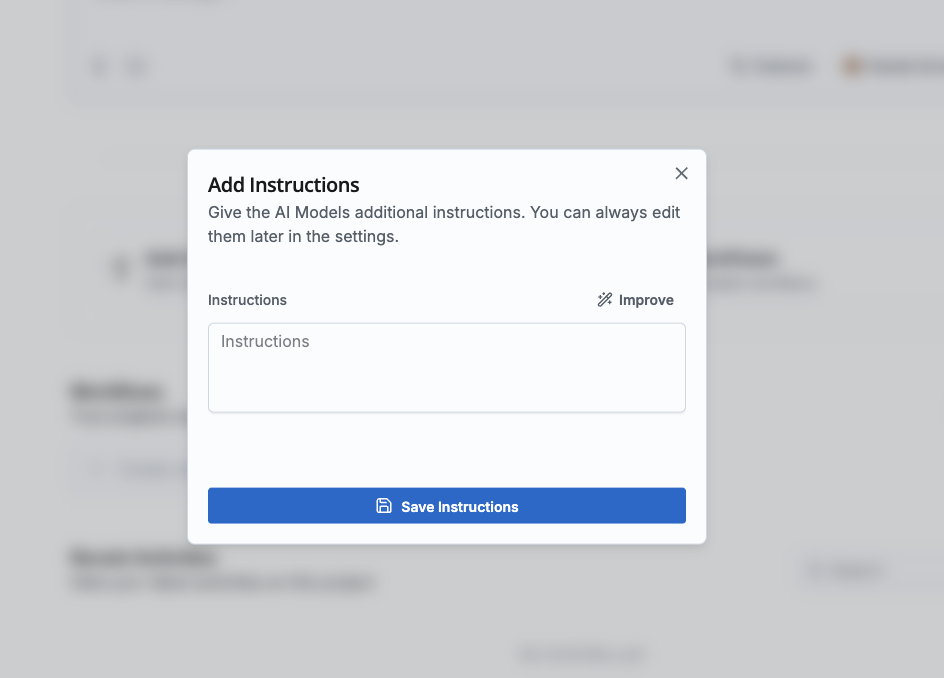
Set Custom Instructions
Define how the AI should behave within this project. These "System Instructions" provide context and rules for every chat initiated here.
Tip: Not sure how to write the perfect instruction? Draft a rough idea, and use the Improve feature to polish it automatically.
Integrate Workflows
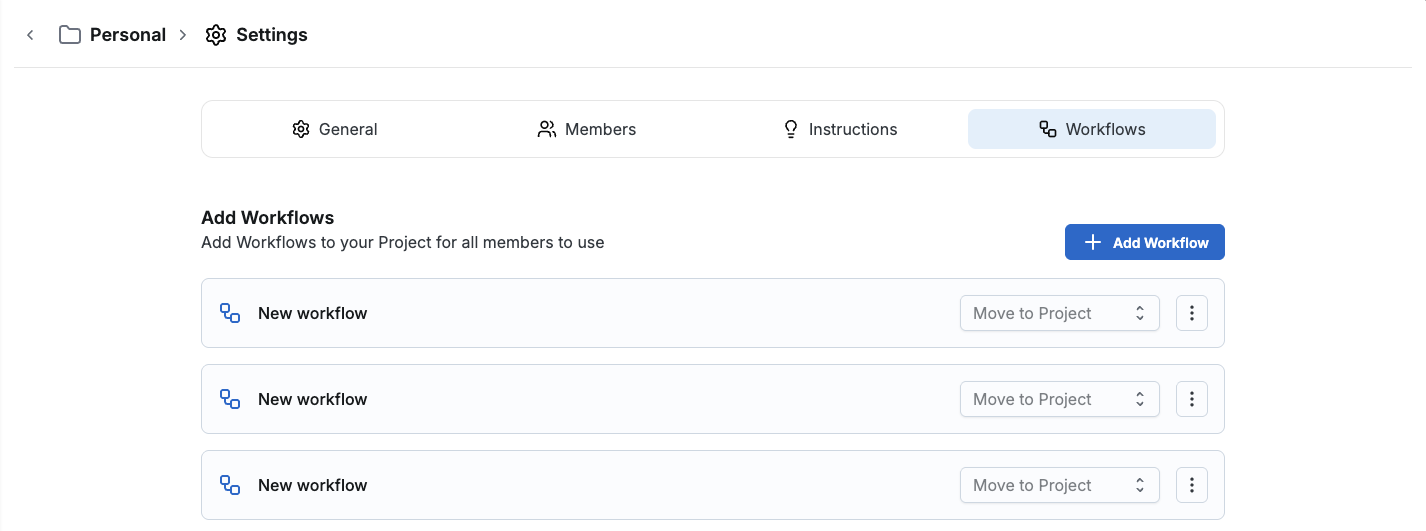
Add Workflows to your project to automate complex sequences of tasks. Using workflows here ensures that they have the project context and their chats are saved in this project.
Learn more about building Workflows →Collaborate and Share
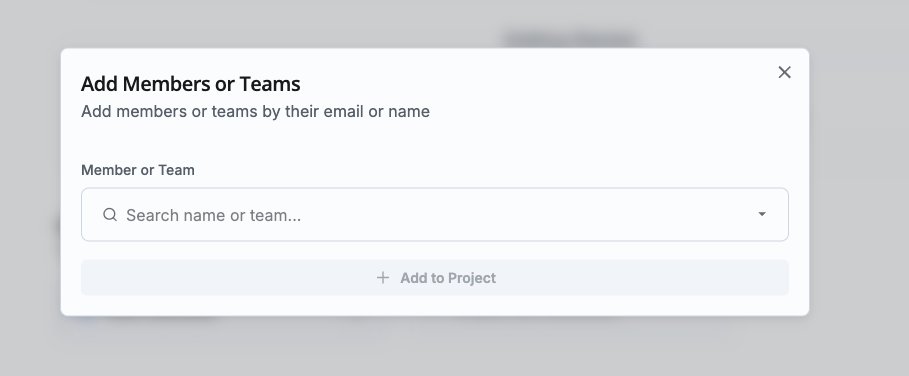
Share your project with specific colleagues or entire teams. When you share a project, members gain access to the Tools (Instructions and Workflows), but not your Data.
Per member you set a role. The role controls what the person can do in the project:
| Role | Permissions |
|---|---|
| Owner | Full access: member management, edit instructions and workflows, delete the project |
| Editor | Create or edit instructions and workflows |
| Member | Run workflows and chat in the project |
Privacy Note: Shared members can use the project's instructions and workflows, but they cannot see your personal chat history. Every user maintains their own private chat list within the shared project.
You can share your workflows with other projects in the project settings.
Start Chatting
You are all set! Start a new chat by typing a prompt or running a specific workflow.
Need to make changes later? Access the Project Settings at any time by clicking the gear icon in the project header.
Delete a project
A project can be deleted from the project settings. Only the creator or a workspace admin can do this.
Deletion is permanent. There is no trash and no way to restore a deleted project. When you delete, you lose all workflows, instructions, and chats inside the project. To confirm, you have to type the project name explicitly. Make sure nothing important gets lost, and let members know if they depend on the project.